Challenge
There are increasingly more platforms and frameworks that help us bring our ideas and projects to life.
However, despite automation and AI being current topics, the human factor is still the most important. This means that despite there being a lot of information and automations to build a good application, what often happens is seeing projects where the budget is extremely limited or where junior developers are simply placed without validation from a senior developer. Even when there is guidance from a senior, sometimes the focus may not be on quality, and the result often falls short of what can be considered quality for modern times. This happens because, despite all the documentation and assistance to create a well-made application, it is still possible to ‘spoil’ it and do it ‘wrong.’
I know that the definition of quality depends on the project, but there are best practices that should be consistent. That’s why if we can find ways to quickly and objectively validate certain Front-End problems without needing to know much about Front-End, this stops being a problem because quality control can be done during development (by the developer themselves without much effort) or even later by the quality team (who don’t need to understand much about Front-End and best practices).
So, we asked ourselves this question: ‘How can we help with this validation without requiring those who do it to be a front-end guru?’
The answer came in the form of a Chrome browser extension that can be installed and used immediately.
What we are trying to solve
The main objective of the extension is to enable anyone to objectively and swiftly analyze an application’s code, providing immediate feedback on its quality.
Similar to how good accessibility is crucial in any application, we also believe that code quality should hold the same level of importance. Considering that every millisecond counts and the speed at which we must change/adapt what was done just a few months ago is enormous, making mistakes early on could be a ‘death sentence’ because the maintenance cost will be significant.
This is precisely what we aim to address – helping to resolve this as early as possible, to prevent all these issues.
Features
Though initially designed for use in applications developed within OutSystems, this plugin can also be employed on other websites/applications beyond OutSystems. In its current version, it provides feedback for three types of validations: Inline CSS, the use of the ‘important’ property, and empty containers in HTML.Additionally, for each validation, we offer guidance on how to solve them.

Usage of Inline CSS
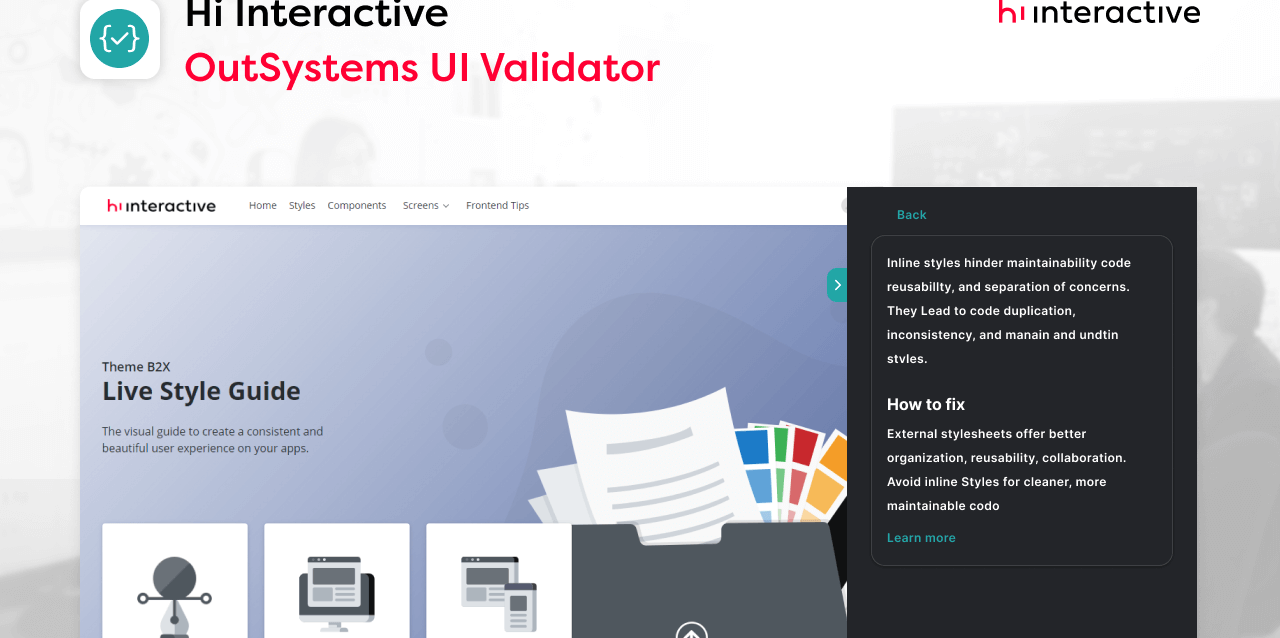
Using inline styles in your HTML is not good for your app maintainability and code reusability. This practice usually leads to code duplication, inconsistency, and difficulty in managing and updating your application styles. By experience, if I have a project with a task to update its UI to a new one, it takes up to 30% more effort to do if the app has inline CSS.
By analysing the usage of inline CSS we can help the developer to create better code.
Usage of “!important” attribute
This is a very common mistake that developers (and UI developers) usually make.
By using the “!important” attribute in CSS, what we are saying is that even though the style we are applying has a lower specificity, it will overwrite other styles with higher specificity.
Believe me, when we use our first “!important” attribute, there is no way back, we will continue to use more and more. This will create a tendency to create unpredictable behaviors and diminish code readability.
Naturally, this practice should be avoided since they introduce complexities that can make code harder to manage.
Empty containers
Empty containers offer no semantic meaning, hinder accessibility, indicate outdated CSS practices and increase code size (yes every kb mathers).
How to use
Using the extension is quite simple.
1– Download the extension from the official Chrome Web Store;2– After installation, click on the top bar of Chrome, on the extensions icon, to display all installed and active extensions.

3– On the dropdown of extensions, click on the icon to pin the OS UI Validator extension to your browser top bar.

4 –Now that you have the OS UI Validator in the Chrome Toolbar, you can click on it to start the extension;
Features
- For some reason, if you need to refresh data on the extension, just click on the circular arrows on the top and the extension will perform a rescan of the current page;

- You can click on the “i” icon to show more information and help tips on how to solve each warning:

- If you have more than 5 warning, just click on the text below the list of warning to expand that area and read all;

- If you to show the entire screen while still using the extension, you can click on the side tab with the little arrow to collapse the extension;

Conclusions
We are not saying that all identified warnings are actually issues because sometimes the only way to accomplish something is by applying an inline CSS style. We just want to make sure that when developing an application you know exactly what you are doing and why you are doing something. If you can justify why you really need an empty DIV on your code, that’s fine.

For the Hi Interactive’s homepage, our extension found a little more than 100 warnings.
For the future, we’re planning to add more types of validations and make the extension increasingly robust, capable of aiding in the development and delivery of applications.
So, with this plugin on hand, even HTML will behave itself, like it’s wearing a suit and tie!PS: this last joke was generated by AI, but this postscript wasn’t.